For the person standing in the foyer on Sunday morning who needs MissionaryConnect working quickly, clearly, and without digging through admin settings.
Turn on the display. Wake the Digital Missions Display and make sure the touchscreen is on.
Check the internet. Confirm Wi-Fi or the wired network is connected before opening MissionaryConnect.
Launch MissionaryConnect. Open the app, or confirm Kiosk Mode has launched automatically. If you see Return Home, tap it.
Test one missionary. Tap Globe, Flat Map, or Card View, then open one missionary profile to confirm the display responds.
Leave it ready. Return to your preferred view and leave MissionaryConnect in Kiosk Mode for your church family.
Tap, Don't Hunt
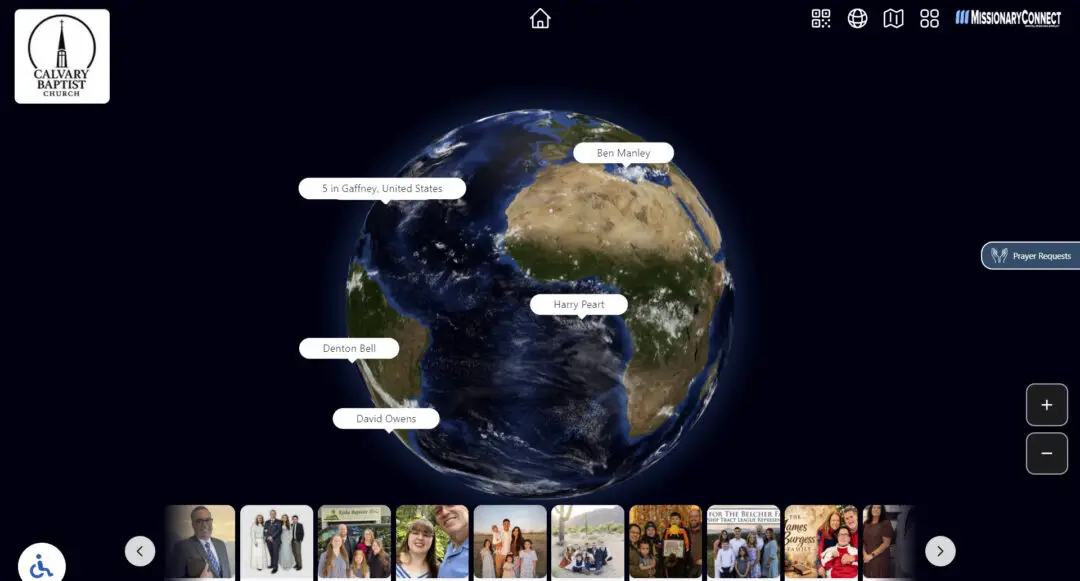
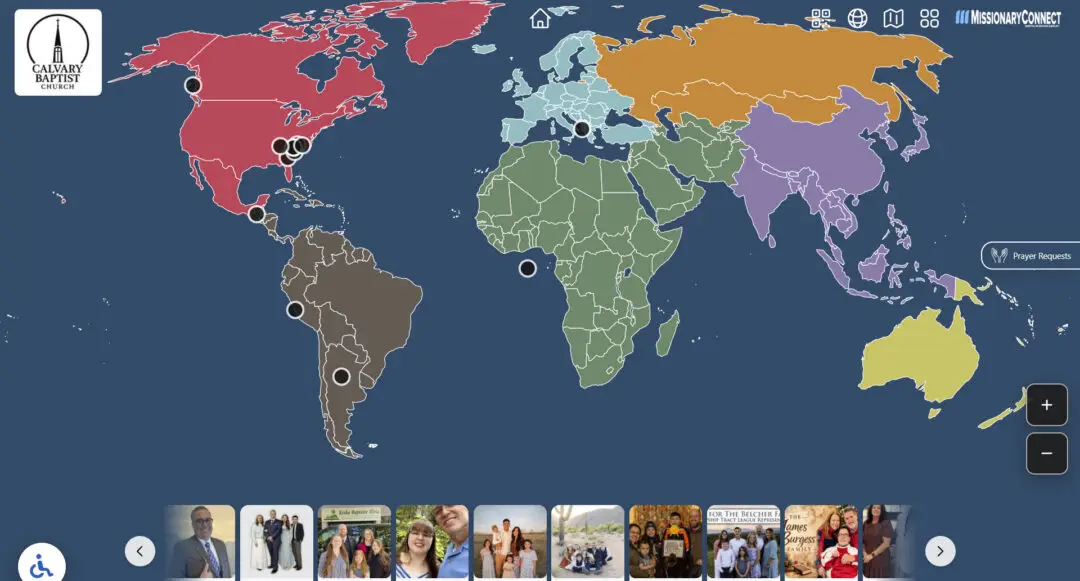
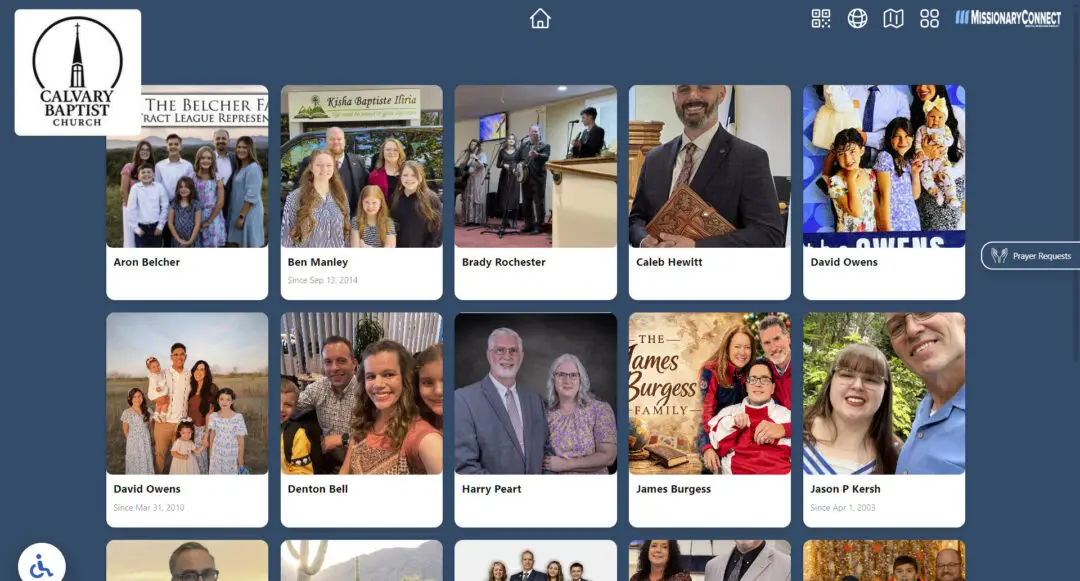
Use the on-screen menu at the top right to move between Globe, Flat Map, and Card View. Tap a missionary to open letters, photos, videos, testimony, and other information.
Use the QR Code
When a missionary profile shows a QR code (Scan To Connect), church members can scan it with their phone to keep learning, praying, or viewing missionary information on their own device.
If Something Looks Wrong
If the display is not responding, browser controls appear, or updates are missing, start with the Troubleshooting Guide before changing any admin settings.
Keep It Simple
Presenters and volunteers focus on launching, navigating, and simple recovery. Profile editing, permissions, and security settings belong to church Owners and Admins.